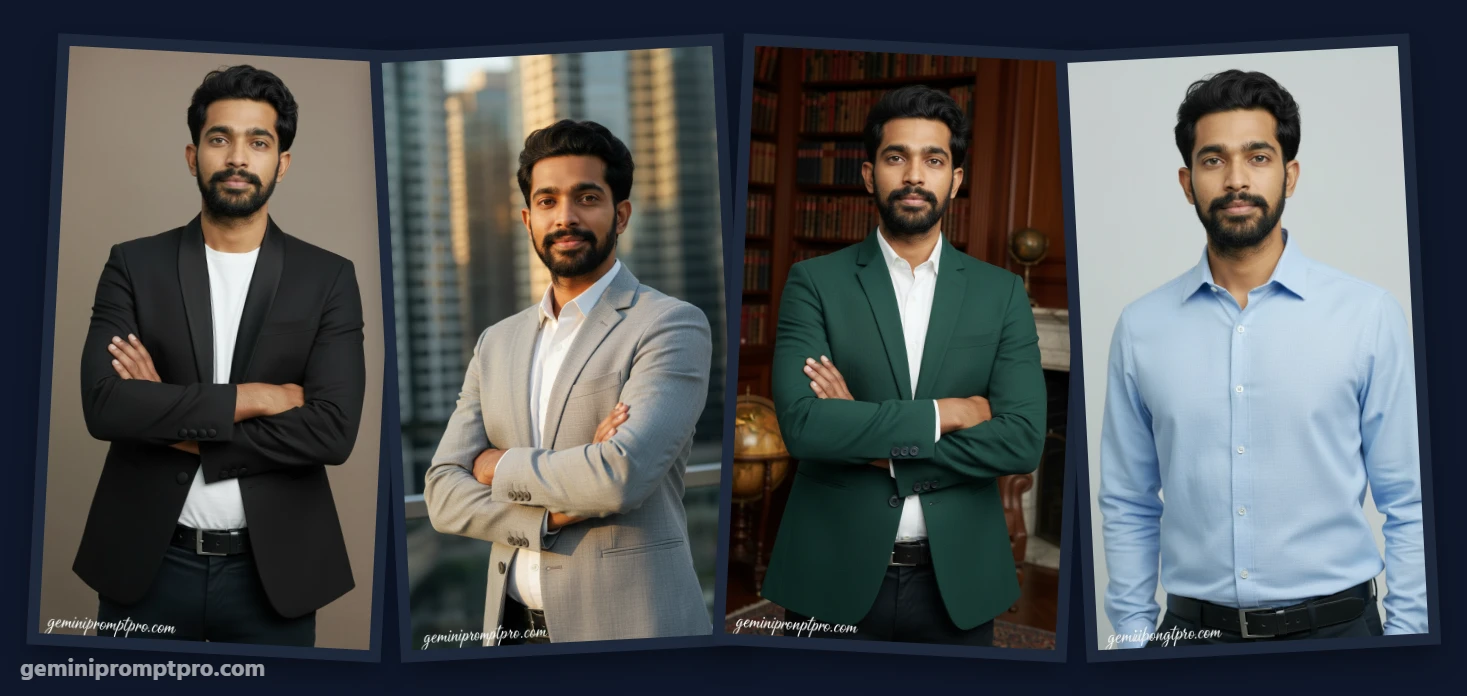
Is your LinkedIn profile working hard enough for you? In 2026, a keyword-optimized, recruiter-ready LinkedIn profile is no longer optional — it’s the foundation of your professional brand. Whether you’re actively job hunting, building a freelance business, or simply expanding your network, your profile is the first thing people see.
The good news? Google’s Gemini AI makes the entire process faster, smarter, and more effective. With the right prompts, you can write a compelling headline, a standout About section, and achievement-packed experience bullets — all in minutes.
In this guide, we’ve compiled 20+ of the best Gemini AI prompts for LinkedIn profile optimization — covering every section of your profile. According to LinkedIn’s official research, members with complete profiles receive up to 40x more opportunities. Let’s help you get there.
Why Use Gemini AI for LinkedIn Profile Optimization?
Gemini AI isn’t just a chatbot — it’s a powerful writing assistant that understands professional context, industry terminology, and SEO best practices. Here’s why it’s a game-changer for LinkedIn:
- Generates industry-specific, keyword-rich headlines instantly
- Writes ATS-friendly About sections tailored to your target role
- Transforms job duties into achievement-focused experience bullets
- Suggests the most in-demand skills for your field in 2026
- Saves hours of writing time while maintaining a professional tone
- Adapts output for different career levels — entry, mid, and senior
Get started directly: Google Gemini AI — free to use with a Google account.
Best Gemini AI Prompts for LinkedIn Profile Photo (Face-Locked, Image-to-Image)
Your LinkedIn profile photo is the first impression recruiters and connections see — before they read a single word. A professional, well-lit headshot can increase profile views by up to 21x according to LinkedIn’s own data. But getting a studio-quality photo isn’t always convenient or affordable.
That’s where AI image generation comes in. With the right prompts and a face-lock technique (also called image-to-image or face reference), you can generate a polished, professional headshot using your own face — no photographer needed.
Below you’ll find 7 ready-to-use prompts for all four major AI tools, plus a step-by-step guide on how to use the face-lock/reference feature in each one.
What Is Face-Lock (Image-to-Image) and Why Does It Matter?
Face-lock — also called face reference, image-to-image, or character reference — is a technique where you upload a photo of your own face as a reference, and the AI generates a new image that preserves your facial features, likeness, and identity while applying a completely new style, background, lighting, or outfit.
Without face-lock: The AI generates a random person who looks nothing like you.
With face-lock: The AI generates YOU — in a professional setting, with perfect lighting and a clean background.
Key Point: The quality of your face reference photo matters. Use a clear, front-facing, well-lit photo (even a phone selfie works) for best results.
How to generete Image using Gemini, Chatgpt.
How to generete Image using Gemini, Chatgpt.
Face-Lock Support: Tool Comparison at a Glance
| AI Tool |
Face-Lock Method |
Best For |
Difficulty |
| 🔵 Gemini (Imagen 3) |
Upload photo → Image editing mode |
Easy, free, casual users |
⭐ Easy |
| 🟣 Midjourney |
–cref [image URL] parameter |
Highest quality, realism |
⭐⭐ Medium |
| 🟠 DALL-E 3 |
Upload image in ChatGPT → describe edits |
Quick edits, GPT users |
⭐ Easy |
| 🟢 Stable Diffusion |
IP-Adapter / ControlNet (face) |
Full control, local use |
⭐⭐⭐ Advanced |
Step-by-Step: How to Use Face-Lock in Each AI Tool
🔵 Gemini (Imagen 3) — Face Reference Steps
| Step |
What To Do |
| 1 |
Go to gemini.google.com and start a new conversation. |
| 2 |
Click the image/attachment icon (📎) and upload your clear, front-facing reference photo. |
| 3 |
In your message, describe the changes you want (style, background, outfit) — Gemini will preserve your face. |
| 4 |
If the first result isn’t ideal, follow up: “Keep the same face but make the background a plain white studio backdrop.” |
| 5 |
Download the image and crop to LinkedIn’s recommended 400×400px square format. |
Pro Tip: Gemini works best when you say ‘keep the person’s face and identity exactly the same’ in your prompt.
🟣 Midjourney — Character Reference (–cref) Steps
| Step |
What To Do |
| 1 |
Upload your reference photo to Discord or any public image host. Copy the direct image URL. |
| 2 |
In Midjourney, use the /imagine command with the –cref parameter: /imagine [your prompt here] –cref [YOUR_IMAGE_URL] |
| 3 |
Add –cw 100 for maximum face similarity (values: 0–100). Example: –cw 80 gives a balance of likeness + style. |
| 4 |
Use –style raw for more realistic, less stylized output — ideal for professional headshots. |
| 5 |
Upscale your preferred variation (U1–U4), then download and crop to 400×400px. |
Pro Tip: Combine –cref with –sref (style reference) to match a specific professional photography style you admire.
🟠 DALL-E 3 (via ChatGPT) — Face Reference Steps
| Step |
What To Do |
| 1 |
Open ChatGPT (GPT-4o) and start a new chat. Click the image/attachment icon (📎). |
| 2 |
Upload your clear, front-facing reference photo and type your prompt describing the desired output. |
| 3 |
Be explicit: ‘Use this person’s face and generate a professional LinkedIn headshot with [describe style/background/outfit].’ |
| 4 |
If the face changes too much, add: ‘Preserve the exact facial features, skin tone, and hair of the person in the reference image.’ |
| 5 |
Download and crop to LinkedIn’s recommended 400×400px square. PNG format preferred. |
Pro Tip: GPT-4o with image input is the easiest face-lock method for beginners — no extra tools or Discord needed.
🟢 Stable Diffusion — IP-Adapter / ControlNet Face Steps
| Step |
What To Do |
| 1 |
Install AUTOMATIC1111 WebUI or ComfyUI locally. Install the IP-Adapter extension (best for face consistency). |
| 2 |
In the img2img tab, upload your reference photo. Set Denoising strength between 0.4–0.6 for face preservation. |
| 3 |
Alternatively, use ControlNet with the ‘face_id’ or ‘ip-adapter-face’ model for stronger face locking. |
| 4 |
Use a professional portrait model (e.g., RealVisXL, Juggernaut XL) for best headshot results. |
| 5 |
Run with your prompt, select the best output, upscale with ESRGAN, and export as PNG. |
Pro Tip: IP-Adapter + ControlNet combined gives the strongest face consistency in Stable Diffusion. Use both for critical outputs.
Quick Tips for the Best AI LinkedIn Photo Results
- Use a recent, clear, front-facing reference photo — avoid sunglasses, hats, or heavy filters
- 1:1 square aspect ratio is optimal for LinkedIn (minimum 400×400px, recommended 800×800px)
- Stick to solid-color or blurred backgrounds — busy backgrounds distract from your face
- Professional clothing in your prompt should match your actual industry and target role
- Generate 4–8 variations and choose the most natural-looking one — avoid overly airbrushed results
- Always do a final review: ensure the face looks like you, proportions are natural, and there are no AI artifacts
For more on LinkedIn photo guidelines, see: LinkedIn Help – Profile Photo Best Practices
💡 Want more AI image prompts beyond LinkedIn? Visit geminipromptpro.com for the full library of professional, creative, and marketing image prompts.
Best Gemini AI Prompts for LinkedIn Headline
Your LinkedIn headline appears in search results, connection requests, and notifications. It’s the most-viewed line on your profile — make it count. Here are the top prompts:
Prompt 1 – Standard Keyword-Rich Headline
| 📌 Prompt: Write a compelling LinkedIn headline for a [Job Title] with [X years] of experience in [Industry]. Include these keywords naturally: [keyword 1], [keyword 2], [keyword 3]. Keep it under 220 characters. |
Pro Tip: Front-load your most important keyword — LinkedIn’s algorithm weighs the beginning of your headline more heavily.
Prompt 2 – Value-Driven Headline
| 📌 Prompt: Create a LinkedIn headline for a [profession] that highlights a clear value proposition. Focus on [specific skill or outcome] and [result achieved]. Make it recruiter-friendly and optimized for the 2026 job market. |
Prompt 3 – Freelancer or Consultant Headline
| 📌 Prompt: Write a LinkedIn headline for a freelance [profession] targeting [client type, e.g., SaaS startups, Fortune 500 companies]. Naturally include: Gemini AI prompts for LinkedIn optimization, [niche skill]. Max 220 characters. |
Prompt 4 – Career Change Headline
| 📌 Prompt: Write a LinkedIn headline for someone transitioning from [Previous Role] to [Target Role]. Highlight transferable skills and the value they bring to the new industry. Keep it under 200 characters and SEO-optimized. |
Best Gemini AI Prompts for LinkedIn About Section
The About section (formerly Summary) is your personal pitch — 2,600 characters to tell your professional story. Use these Gemini prompts to write one that hooks recruiters immediately:
Prompt 5 – Storytelling About Section
| 📌 Prompt: Write a LinkedIn About section in first person for a [Job Title] at [Company Type/Industry]. Include: a strong opening hook, career journey summary, top 3 achievements with metrics, core skills ([skill 1], [skill 2], [skill 3]), and a clear call-to-action. Keep it between 220–280 words. Optimize for LinkedIn SEO with natural keyword placement. |
Prompt 6 – Active Job Seeker Summary
| 📌 Prompt: Create a LinkedIn About section for someone actively seeking [Job Role] opportunities in [Industry]. Highlight transferable skills, 2–3 key accomplishments, and include an ‘Open to opportunities’ message. Use AI-powered LinkedIn profile optimization keywords naturally. |
Prompt 7 – Executive / Senior Leader Summary
| 📌 Prompt: Write a LinkedIn About section for a senior [Title, e.g., VP of Marketing] with [X years] of experience. Focus on strategic impact, revenue/team growth, industry thought leadership, and board-level communication. 250 words max. Professional and authoritative tone. |
Prompt 8 – Career Change Summary
| 📌 Prompt: Write a LinkedIn About section for someone transitioning from [Previous Career, e.g., teaching] to [New Career, e.g., UX design]. Emphasize transferable skills, self-directed learning (mention any courses/certifications), and genuine passion for the new field. 200–250 words. |
Official LinkedIn guidance on writing your About section: LinkedIn Help Center – Profile Tips
Best Gemini AI Prompts for LinkedIn Experience Section
Recruiters spend seconds scanning your experience section. Ditch the job description copy-paste. Use these prompts to write impact-first bullet points that actually get interviews:
Prompt 9 – STAR-Method Experience Bullets
| 📌 Prompt: Rewrite the following job description into 4–5 LinkedIn-optimized bullet points using the STAR method (Situation, Task, Action, Result). Include quantified metrics wherever possible. Optimize for ATS and recruiter readability. Job description: [paste your text here]. |
Prompt 10 – Quantified Achievement Bullets
| 📌 Prompt: Convert these responsibilities into 4 impactful LinkedIn experience bullets for a [Job Title] role. Focus on measurable business outcomes, revenue impact, or efficiency gains. Responsibilities: [describe your day-to-day tasks]. |
Prompt 11 – Leadership & Management Experience
| 📌 Prompt: Write LinkedIn experience bullets for a [Manager/Director/VP] who led a team of [X] people and was responsible for [key responsibilities]. Highlight team growth, process improvements, and bottom-line impact. Include professional LinkedIn prompts and LinkedIn profile writing AI keywords. |
Prompt 12 – Internship or Entry-Level Experience
| 📌 Prompt: Write 3–4 strong LinkedIn experience bullets for an internship or entry-level [Job Title] role at a [Company Type]. Focus on skills learned, contributions made, and any measurable outcomes. Keep it concise and professional. |
Best Gemini AI Prompts for LinkedIn Skills Section
LinkedIn’s algorithm surfaces profiles with relevant, endorsed skills. Choosing the right skills can dramatically increase your search visibility with recruiters. Use these prompts:
Prompt 13 – Skills List by Category
| 📌 Prompt: Generate a comprehensive list of 15–20 LinkedIn skills for a [Job Title] in [Industry] for 2026. Separate into three categories: Technical/Hard Skills, Soft Skills, and Industry-Specific Skills. Prioritize skills that recruiters actively search for. |
Prompt 14 – Trending Skills for My Role
| 📌 Prompt: What are the most in-demand LinkedIn skills for a [Job Title] in [Industry] in 2026? Include emerging skills related to AI, automation, and [industry trend]. Focus on LinkedIn skills section optimization for maximum recruiter visibility. |
Prompt 15 – Skills Endorsement Request Message
| 📌 Prompt: Write a short, personalized LinkedIn message to send to a [colleague/manager/client] asking for skill endorsements. Mention our collaboration on [project]. Skills to endorse: [skill 1], [skill 2], [skill 3]. Professional, friendly tone. Under 100 words. |
Best Gemini AI Prompts for LinkedIn Recommendations
Prompt 16 – Request a Recommendation
| 📌 Prompt: Write a LinkedIn recommendation request message to my [relationship: former manager / colleague / client] at [Company]. Reference our work together on [specific project or time period]. Ask them to highlight [specific skill or achievement]. Professional tone, under 150 words. |
Prompt 17 – Write a Recommendation for Someone
| 📌 Prompt: Write a glowing LinkedIn recommendation for [Name], a [Job Title] I worked with at [Company]. Highlight their strengths in [skill 1] and [skill 2]. Mention the impact they had on [project or team result]. Genuine, specific, and 120–150 words. |
Best Gemini AI Prompts for LinkedIn Outreach Messages
Prompt 18 – Cold Connection Request
| 📌 Prompt: Write a LinkedIn connection request to a [Job Title] at [Company]. Reference their recent post about [topic] or our shared interest in [field]. Non-salesy, conversational tone. Under 300 characters. |
Prompt 19 – Recruiter Outreach Message
| 📌 Prompt: Write a LinkedIn message to a recruiter at [Company] expressing interest in [specific role or type of role]. Mention my background in [field], top skill ([skill]), and one achievement. Professional, direct, and under 150 words. Use Gemini prompts for recruiters style language. |
Prompt 20 – Follow-Up After Connecting
| 📌 Prompt: Write a LinkedIn follow-up message after connecting with a [profession] I met at [event/platform]. Reference something specific about their work. Goal: open a genuine professional conversation — not a sales pitch. Under 120 words. |
Advanced Gemini AI Prompts for LinkedIn SEO
These power-user prompts help you reverse-engineer LinkedIn’s search algorithm so recruiters find you first:
Prompt 21 – LinkedIn Keyword Research
| 📌 Prompt: I am a [Job Title] in [Industry] targeting [type of companies or roles]. Identify the top 20 LinkedIn SEO keywords that recruiters search for in 2026. Categorize as: primary keywords, secondary keywords, and long-tail keyword phrases. Explain why each category matters. |
Prompt 22 – Full Profile SEO Audit
| 📌 Prompt: Audit my LinkedIn profile and suggest specific improvements for SEO and recruiter appeal. Headline: [paste]. About: [paste]. Top 3 skills: [list]. Career goal: [describe]. Provide rewritten versions of each section using LinkedIn profile writing AI optimization best practices. |
Prompt 23 – ‘Open to Work’ Post
| 📌 Prompt: Write a LinkedIn post announcing that I am open to [Job Type] opportunities in [Industry]. Include: my key skills, what unique value I bring, and a clear call-to-action for recruiters or connections. 150–200 words. Include relevant hashtags for LinkedIn SEO optimization and Gemini AI career tips visibility. |
Pro Tips for Getting the Best Results from Gemini AI
| Tip |
Details |
| Be Specific |
The more context you give Gemini, the better the output will be |
| Iterate |
Not satisfied? Follow up with: ‘Make it more concise’ or ‘Add more keywords’ |
| Specify Tone |
Always mention: Professional / Confident / Approachable |
| Include Keywords |
Mention your target keywords inside the prompt so Gemini uses them naturally |
| Set Word Limits |
LinkedIn has character limits — always specify a word/character count in your prompt |
Frequently Asked Questions (FAQ)
Q: Is Gemini AI good for LinkedIn profile optimization?
A: Absolutely. Gemini AI excels at understanding professional context and generating industry-specific, keyword-rich content that aligns with LinkedIn’s algorithm. It’s one of the fastest ways to upgrade your profile in 2026.
Q: Is Gemini AI free to use for LinkedIn prompts?
A: Yes. You can access Gemini for free at gemini.google.com with a Google account. For more advanced capabilities like longer outputs and deeper context, Gemini Advanced (included in Google One AI Premium) is available as a paid upgrade.
Q: How long should my LinkedIn Headline be?
A: LinkedIn allows up to 220 characters for your headline. However, in most search results, only the first 120 characters are visible — so place your most important keywords at the beginning of the headline.
Q: Should I copy-paste Gemini’s output directly to LinkedIn?
A: Use Gemini’s output as a strong first draft. Always personalize it with your specific achievements, numbers, and voice. This keeps your profile authentic and avoids sounding generic.
Q: How long should the LinkedIn About section be?
A: LinkedIn allows up to 2,600 characters (roughly 400 words). The sweet spot for engagement is 200–300 words — enough to tell your story without losing the reader’s attention.
Q: How many skills should I add to my LinkedIn profile?
A: LinkedIn allows up to 50 skills. Focus on quality over quantity — prioritize the top 10–15 skills most relevant to your target role. The top 3 skills displayed on your profile are the most visible to recruiters.
Q: Can Gemini AI help me write LinkedIn posts as well?
A: Yes! Gemini is excellent for writing thought leadership posts, engagement-driving content, and announcement posts that increase your profile visibility. Just describe your topic, target audience, and desired tone.
Q: How often should I update my LinkedIn profile?
A: Aim to review and update your profile every 3–6 months, or whenever you gain a new skill, complete a project, change roles, or earn a certification. A recently updated profile signals activity to LinkedIn’s algorithm.
Helpful Resources
📚 LinkedIn Official Help – Complete Your Profile – Why a complete profile gets 40x more opportunities
🤖 Google Gemini AI – Try It Free – Start writing better prompts today
📊 HubSpot – LinkedIn Profile Optimization Guide – Expert strategies for building a standout profile
🎯 Jobscan – ATS Optimization for LinkedIn – How to make your profile ATS-friendly
🌐 Gemini Prompt Pro – More AI Prompts – Your go-to library for the best Gemini AI prompts
Final Thoughts
In 2026, your LinkedIn profile is your digital resume, your personal brand, and your 24/7 networking tool — all in one. The professionals who invest time in optimizing their profiles with the right keywords, compelling copy, and clear value propositions are the ones getting the callbacks, the opportunities, and the connections that matter.
With the best Gemini AI prompts for LinkedIn profile optimization in this guide, you have everything you need to transform your profile from average to exceptional. Pick the prompts most relevant to your goals, customize them with your own details, and watch your profile visibility grow.
Ready for more? Visit geminipromptpro.com for the largest curated library of Gemini AI prompts across every use case — from LinkedIn to content creation, coding, and beyond.
🌐 Website: geminipromptpro.com | ✍️ Gemini Prompt Pro – Your Ultimate AI Prompt Resource